How to connect to your server using SFTP
Short answer: Your SFTP details are on [Your Server] > Settings under SFTP Details. In an SFTP app such as FileZilla or WinSCP, connect to that host on port 22, with the username shown there (for example example-user.a1b2c3d4) and your Game Panel password.
SFTP (SSH File Transfer Protocol) is a secure way to move files between your computer and your server. It is better than the browser file manager for big uploads such as worlds and modpacks. We don’t offer plain FTP.
Before you begin
Section titled “Before you begin”- You need: the server owner’s account, or a subuser with the SFTP permission (plus the file permissions for what they need to do).
- You need a Game Panel password. If you always sign in with Sign in with Host It Create It, you may never have set one: see “Set a Game Panel password” below.
- Have ready: an SFTP app. Free options: FileZilla (Windows, macOS, Linux), WinSCP (Windows), Cyberduck (Windows, macOS).
- Time needed: about 5 minutes.
What this guide covers
Section titled “What this guide covers”- Setting a Game Panel password (if you don’t have one)
- Finding your SFTP details
- Connecting with FileZilla (other apps work the same way)
Set a Game Panel password (only if you don’t have one)
Section titled “Set a Game Panel password (only if you don’t have one)”- Sign out of the Game Panel.
- On https://panel.hostitcreateit.com, select Forgot password? and enter the email address of your account.
- Open the email and choose a password. This password is for the Game Panel and SFTP only; it doesn’t change your Client Area password.
Find your SFTP details
Section titled “Find your SFTP details”-
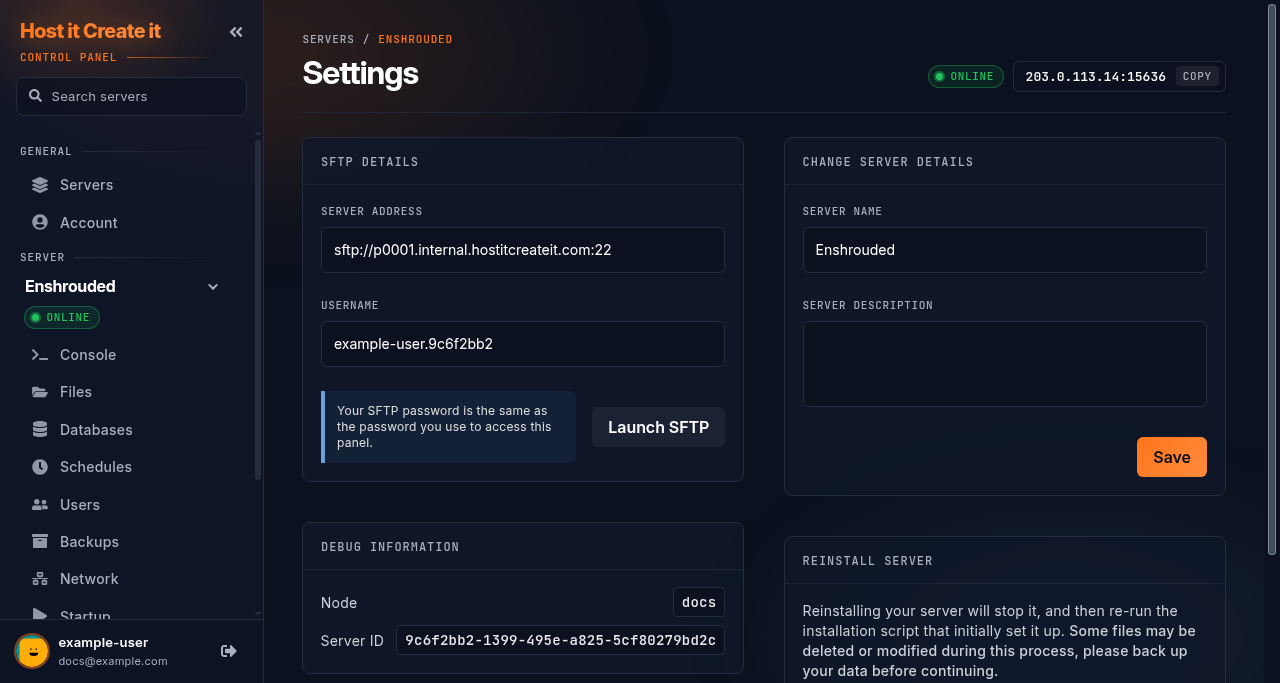
Go to [Game Panel] > [Your Server] > Settings.
-
Under SFTP Details you will see:
- Server Address, in the form
sftp://<host>:22. The host is the part betweensftp://and the colon. Port is 22. - Username, in the form
<your panel username>.<server ID>, for exampleexample-user.a1b2c3d4. Each server has its own SFTP username.
- Server Address, in the form
-
The page also says: “Your SFTP password is the same as the password you use to access this panel.”
Connect with FileZilla
Section titled “Connect with FileZilla”- Open FileZilla and go to File > Site Manager > New site.
- Set Protocol to SFTP - SSH File Transfer Protocol (not “FTP”).
- Enter the Host (without
sftp://) and Port22. - Set Logon Type to Normal, then enter the User (the full SFTP username, with the dot and server ID) and your Game Panel Password.
- Select Connect.
- The first time, FileZilla asks whether to trust the server’s key. Check the host matches step 5, then select OK.
Expected result
Section titled “Expected result”FileZilla’s right-hand side shows your server’s files, the same ones you see on the Files page.
Common mistakes
Section titled “Common mistakes”- Choosing FTP instead of SFTP. Plain FTP is not supported.
- Typing only your username. The SFTP username includes the dot and server ID:
example-user.a1b2c3d4. - Using your Client Area password. SFTP uses your Game Panel password, which is separate.
- Editing files while the server is running. Many games rewrite their config files when they stop, undoing your edit. Stop the server first.
Troubleshooting
Section titled “Troubleshooting”| What you see | What it means | What to do |
|---|---|---|
| “Authentication failed” / “Access denied” | Username or password rejected | Copy the username again from Settings; set a new Game Panel password with Forgot password? |
| “Connection timed out” | Wrong host or port, or your network blocks it | Check host and port 22; try another network (some school and work networks block SFTP) |
| “Connection refused” | Nothing answered at that host and port | Check host and port; check status.hostitcreateit.com |
| Upload stops part way | Disk full | Check disk use on the Console page |
| Can see files but can’t change them | Your subuser account lacks file permissions | Ask the server owner |
When to contact support
Section titled “When to contact support”Contact support if you get “authentication failed” after setting a new Game Panel password and copying the username exactly, or “connection refused” while the status page shows no problems. Include your SFTP app, the exact error, and the time you tried (with your time zone). Never send us your password.
Related guides
Section titled “Related guides”Last reviewed: 2026-10-05 · Applies to: Game Panel (hici 0.4.2)