How to reinstall or reset a game server
Warning: this can delete your world A reinstall runs the game’s installation again. It can overwrite or delete files, including worlds, settings and mods. It cannot be undone. Create a backup and download it to your computer before you continue.
Short answer: Go to [Your Server] > Settings and select Reinstall Server. For a completely fresh start, back up, delete the old files, then reinstall.
Before you begin
Section titled “Before you begin”- You need: the server owner’s account, or a subuser with the Reinstall permission (under Settings).
- Do first: How to create and restore a backup. Then download that backup to your computer.
- Time needed: 5 to 30 minutes, depending on the game’s download size.
What this guide covers
Section titled “What this guide covers”- Reinstall: re-download the game files and run setup again, to repair a broken install. Your world is usually kept, but this is not guaranteed.
- Full reset: remove everything and start with a brand-new server.
It doesn’t cover changing to a different game or game variant (for example from Valheim to Valheim with mods). For that, open a ticket.
Which one do I need?
Section titled “Which one do I need?”| Situation | Use |
|---|---|
| Game files damaged, server will not start after a failed update | Reinstall |
| Want to try a fix before contacting support | Reinstall (after a backup) |
| Want a new world but keep your settings | Neither: delete or rename just the world folder (see your game guide) |
| Want everything back to day one | Full reset |
Reinstall
Section titled “Reinstall”-
Create a backup and download it.
-
Stop the server.
-
Go to [Game Panel] > [Your Server] > Settings.
-
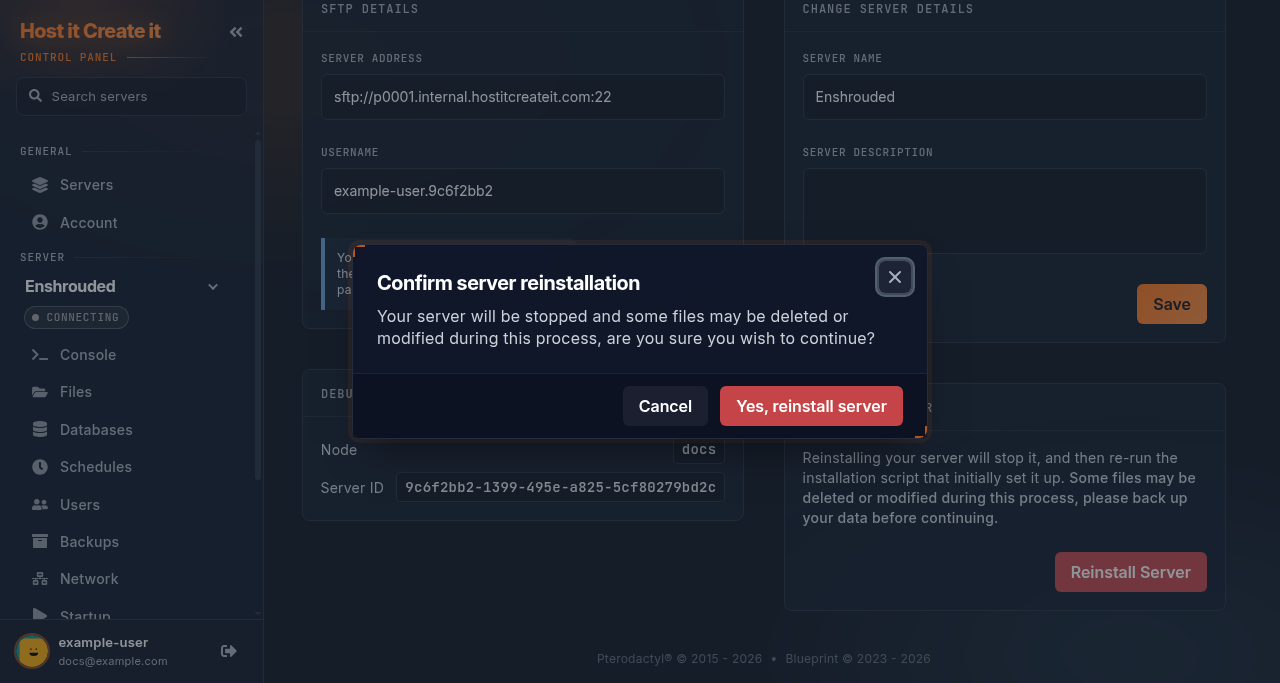
In the Reinstall Server section, read the warning, then select Reinstall Server.
-
In Confirm server reinstallation, select Yes, reinstall server. You’ll see “Your server has begun the reinstallation process.” You can’t start the server until it finishes.
-
When installation finishes, start the server and check your world and settings.
Full reset
Section titled “Full reset”- Create a backup and download it.
- Stop the server.
- Go to Files, select all files and folders, and delete them.
Warning This permanently deletes your world, settings and mods. Only your downloaded backup can bring them back.
- Follow the reinstall steps 3 to 6.
- Set your server name, password and other options again on the Startup page, or the Game Settings page if your game has one.
Expected result
Section titled “Expected result”- Reinstall: the server starts; your world is still there in most games.
- Full reset: the server starts with a new world and default settings.
Common mistakes
Section titled “Common mistakes”- Reinstalling without downloading the backup. If something goes wrong with the backup system too, the downloaded copy is your only copy.
- Reinstalling to fix a mod problem. Reinstalls often keep mod files. Remove the mod instead: see Removing mods safely.
- Expecting a reinstall to change the game version. Version is controlled by Startup settings; a reinstall uses whatever is set there.
Troubleshooting
Section titled “Troubleshooting”| What you see | What it means | What to do |
|---|---|---|
| Stuck on installing for over 30 minutes | The game download is slow or failed | Wait up to an hour for very large games, then contact support |
| Install finished but server will not start | Setup error or old files in the way | Read the console; see My server will not start |
| World is gone after a reinstall | The install replaced the world folder | Restore the backup you took in step 1 |
| Reinstall Server is missing | You don’t have permission | Ask the server owner |
| “Reinstalling this server has been disabled…” | This server is set up to skip the install process | Contact support |
When to contact support
Section titled “When to contact support”Contact support if the reinstall fails twice, or stays on installing for more than an hour. Include the time you started the reinstall and what the Console page shows. We cannot see your files’ previous state unless you have a backup.
Related guides
Section titled “Related guides”- How to create and restore a backup
- Changing startup settings
- Removing mods safely
- My server will not start
Last reviewed: 2026-10-05 · Applies to: Game Panel (hici 0.4.2)