How to view server logs and share them with support
Short answer: Recent output is on [Your Server] > Console. Older output is saved in log files you can open or download on the Files page. Remove passwords and IP addresses before sharing a log.
A log is the text record a game server writes as it runs: what loaded, who joined, and what went wrong.
Before you begin
Section titled “Before you begin”- You need: access to the Console and Files pages.
- Time needed: about 5 minutes.
What this guide covers
Section titled “What this guide covers”- Reading the live console
- Finding log files
- Sharing a log safely
Read the live console
Section titled “Read the live console”- Go to [Game Panel] > [Your Server] > Console.
- Scroll up to read recent output. Lines from the panel itself start with
container@pterodactyl~(for example the start-up command, or “Server marked as offline…”); everything else comes from the game. - Look for lines containing
ERROR,Exception,FATALorCrash, usually near the end of the output before the server stopped.
Find log files
Section titled “Find log files”-
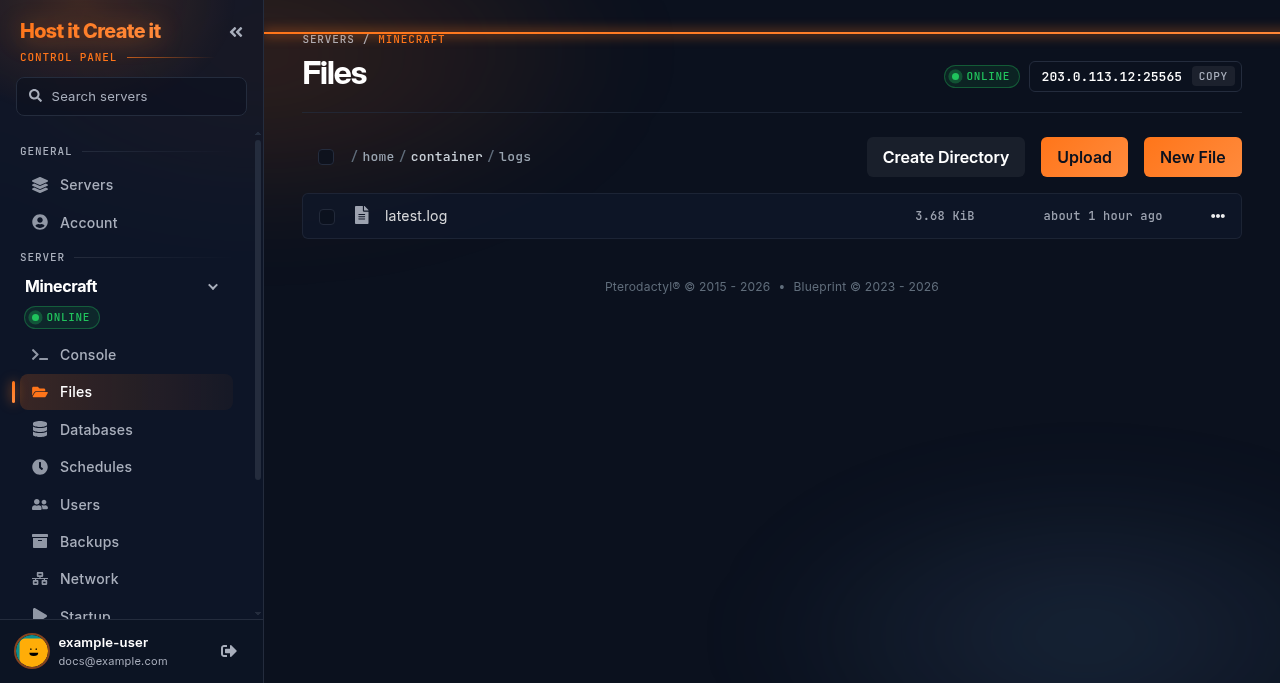
Go to Files.
-
Open the game’s log folder. Common locations:
Game Where to look Minecraft logs/latest.log; crashes incrash-reports/Games with mod loaders (BepInEx, etc.) BepInEx/LogOutput.logOther games See the “Logs” section of your game guide -
Select a log file to view it, or open its menu and select Download to save it to your computer.
Share a log safely
Section titled “Share a log safely”- Copy the part around the error: about 50 lines before it and 10 lines after. For crashes on start-up, the whole start-up section.
- Remove or replace before sharing:
- passwords, RCON passwords, API keys and tokens
- IP addresses of players
- anything personal in player names or chat
- Attach the log to your support ticket as a
.txtfile, or paste it into the ticket. Do not send screenshots of logs: we cannot search or copy text from an image.
Expected result
Section titled “Expected result”You can see the error line and share it with support or a mod author without exposing private data.
Common mistakes
Section titled “Common mistakes”- Sending only the last line. The cause is usually several lines earlier.
- Restarting before copying the error. The console clears; the log file may be replaced on the next start (Minecraft’s
latest.logis). - Sharing a log with passwords in it. Server passwords often appear in start-up lines.
Troubleshooting
Section titled “Troubleshooting”| What you see | What it means | What to do |
|---|---|---|
| Console is empty | The server is offline, or the page has not connected | Start the server; refresh the page; check status.hostitcreateit.com |
| Status stays on Connecting and the console never loads | The panel cannot reach the host machine | Check the status page, then contact support |
| No log folder | Some games only print to the console | Copy from the console straight after the problem |
| Log is too large to open | Long-running server | Download it instead of opening it in the browser |
When to contact support
Section titled “When to contact support”Contact support if you have found an error you cannot fix with your game guide, or the server crashes with no error at all. Include the log extract (step 7) and the time it happened, with your time zone.
Related guides
Section titled “Related guides”- How to contact support with useful diagnostic information
- My server will not start
- My server keeps crashing or restarting
Last reviewed: 2026-10-05 · Applies to: Game Panel (hici 0.4.2)