Changing startup settings
Short answer: Go to [Your Server] > Startup. Under Variables, change the setting you want: it saves automatically. Restart the server to apply it.
The Startup page holds the settings your game reads when it starts: often the server name, password, player limit, world name and version.
Before you begin
Section titled “Before you begin”- You need: the server owner’s account, or a subuser with the startup permissions.
- If your game has a Game Settings page, try that first: it covers the most common options with menus.
- Time needed: 2 minutes.
What this guide covers
Section titled “What this guide covers”- Changing a startup setting
- Settings you can’t change
-
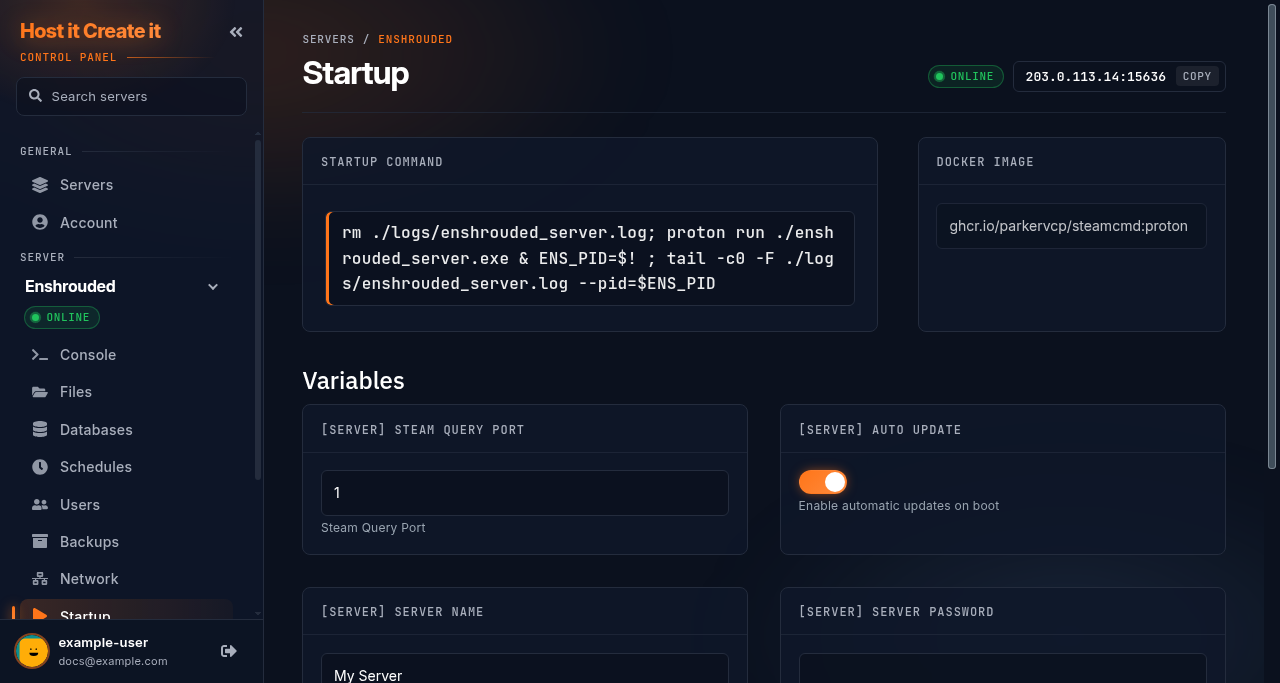
Go to [Game Panel] > [Your Server] > Startup.
-
Find the setting under Variables. Each one has a short description underneath.
-
Change the value. It saves automatically a moment after you stop typing.
-
Go to Console and select Restart.
What else is on this page
Section titled “What else is on this page”- Startup Command: the command used to start the game. You can’t change it, but it’s useful for support.
- Docker Image: the software environment your game runs in. Only change it if a guide or our support team tells you to.
- Settings marked Read Only are fixed for your plan or game. Contact support if you need one changed.
Expected result
Section titled “Expected result”After the restart, the console shows the game starting with your new setting (for example the new server name in the server browser).
Common mistakes
Section titled “Common mistakes”- Not restarting. Most settings are read only at start-up.
- Editing the same setting in a config file too. Some games take the Startup value and overwrite the config file at every start. Change it here, not in the file.
- Typos in true/false or number fields. If the game expects a number, enter only digits.
Troubleshooting
Section titled “Troubleshooting”| What you see | What it means | What to do |
|---|---|---|
| A red message under the field | The value isn’t allowed (wrong type or too long) | Read the message and fix the value |
| Change has no effect after restart | The game reads that setting from a config file instead | Check your game’s guide for where it lives |
| Server won’t start after a change | The new value isn’t valid for the game | Change it back; see My server will not start |
When to contact support
Section titled “When to contact support”Contact support if you need a Read Only setting changed, or if a change saves but the game ignores it. Include the setting name and the value you want. See How to contact support with useful diagnostic information.
Related guides
Section titled “Related guides”Last reviewed: 2026-10-05 · Applies to: Game Panel (hici 0.4.2)