How to start, stop and restart your server safely
Short answer: On your server’s Console page, use Start, Stop or Restart. Always use Stop, never Kill, unless the server is frozen: Kill ends the game without saving.
Before you begin
Section titled “Before you begin”- You need: the server owner’s account, or a subuser with the Start, Stop and Restart permissions (under Control).
- Time needed: 1 to 10 minutes, depending on the game and mods.
What this guide covers
Section titled “What this guide covers”- What each power button does
- How to stop without losing progress
- What the server states mean
The server states
Section titled “The server states”| State | Meaning |
|---|---|
| Offline | The game is not running. Players cannot connect. |
| Starting | The game is loading. Players usually cannot connect yet. |
| Online | The game process is running. Most games accept players once the console shows they are ready (see your game guide for the exact message). |
| Stopping | The game has been asked to save and shut down. |
The status appears next to the server name in the menu. Connecting means the panel is still reaching the server; it normally changes within a few seconds.
On a phone, the Start, Restart and Stop buttons are under Power in the bar at the bottom of the screen.
Start the server
Section titled “Start the server”-
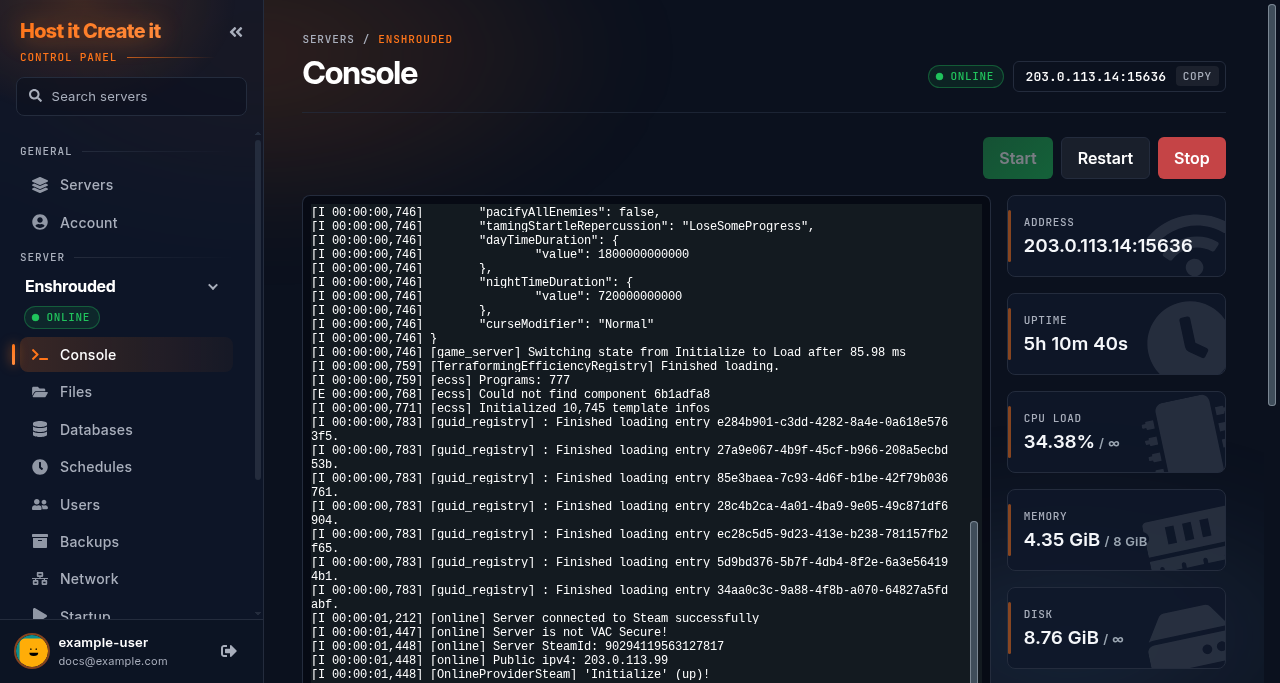
Go to [Game Panel] > [Your Server] > Console.
-
Select Start.
-
Watch the console. The status changes to Starting, then Online. Large or modded servers can take several minutes to finish loading after they show Online.
Stop the server
Section titled “Stop the server”- Optional but recommended: tell players, and if your game has a save command, run it first in the console box (for example
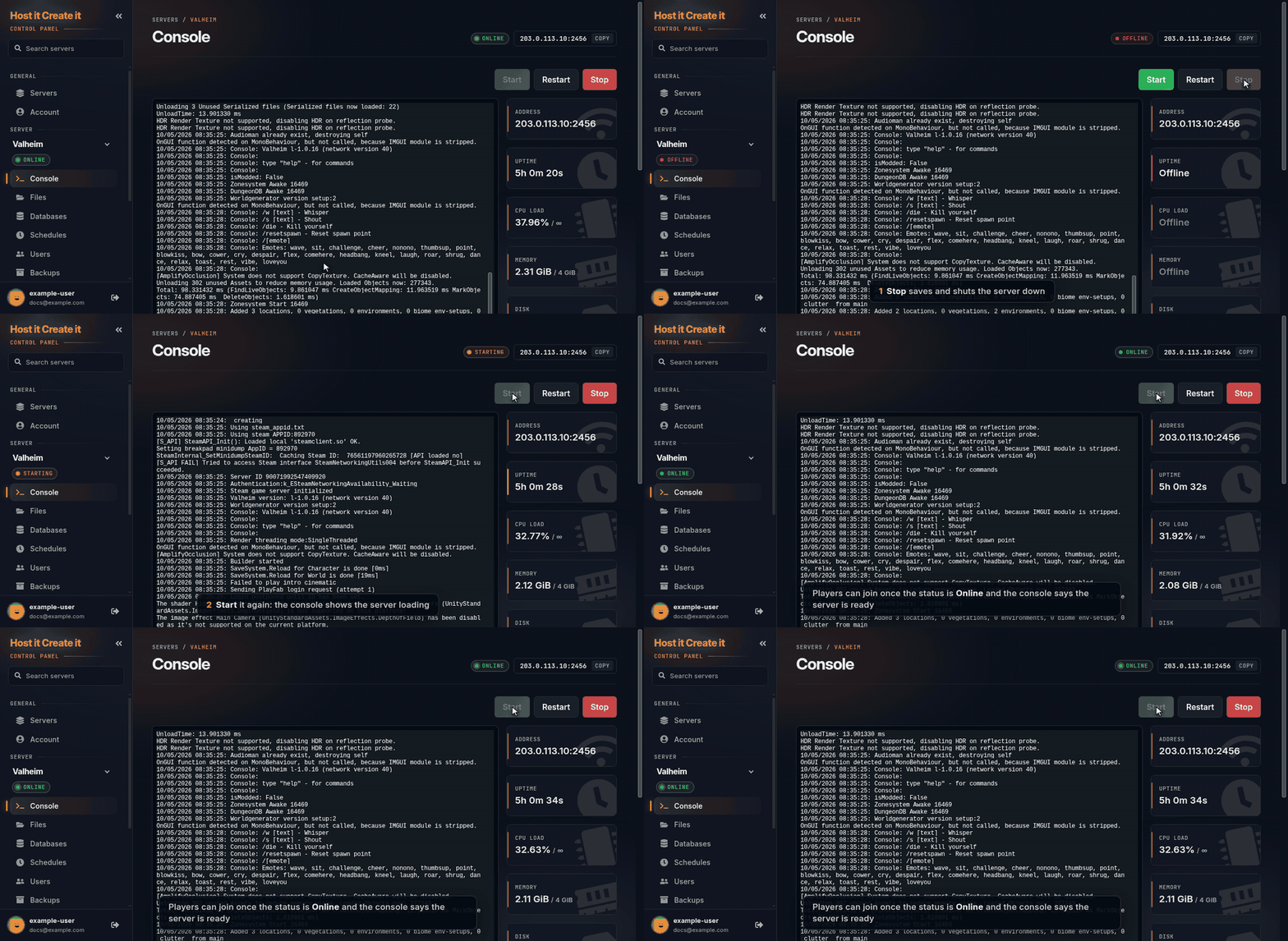
save-allon Minecraft). Your game guide lists the command. - Select Stop. The game is asked to save and shut down cleanly.
- Wait until the status shows Offline. Some games take a minute or more to save.
Restart the server
Section titled “Restart the server”- Select Restart. This is the same as Stop followed by Start.
Expected result
Section titled “Expected result”- After Start: status Online, and the console shows the game’s “ready” message.
- After Stop: status Offline, and the last console lines show the game saving and exiting.
Common mistakes
Section titled “Common mistakes”- Using Kill to stop faster. It skips saving. Wait for Stop.
- Restarting during a mod download. Steam Workshop downloads from the Mods page stop the server while they run, and leave it stopped afterwards. Let them finish, then start the server.
- Joining the moment the status changes. The status says Online as soon as the game process starts, but many games keep loading the world for a while after. Wait for the ready message.
- Starting a suspended server. Suspended servers cannot be started. See Why is my server suspended?.
Troubleshooting
Section titled “Troubleshooting”| What you see | What it means | What to do |
|---|---|---|
| Goes Starting, then Offline again | The game crashed while starting | Read the last 30 lines of the console; see My server will not start |
| Stuck on Starting for over 15 minutes | Still loading, or frozen | Check whether the console is still printing. If it has been silent for 10 minutes, use Stop, then see My server will not start |
| Stuck on Stopping | The game is not responding to the shutdown | Wait 5 minutes, then use Kill |
| Power buttons are missing or greyed out | No permission, or the server is installing, restoring a backup, suspended, or the page is still Connecting | Check the message at the top of the page; ask the server owner for the power permissions |
| Server restarts by itself | A schedule, a crash, or maintenance | Check Schedules, then Activity, then the status page |
When to contact support
Section titled “When to contact support”Contact support if the server will not start after you have checked the console for errors and tried once more, or if the power buttons do nothing at all. Attach the last 50 lines of the console. See How to contact support with useful diagnostic information.
Related guides
Section titled “Related guides”- How to view server logs and share them with support
- Setting up automatic restarts and backups with schedules
- My server will not start
Last reviewed: 2026-10-05 · Applies to: Game Panel (hici 0.4.2)