Minecraft server guide
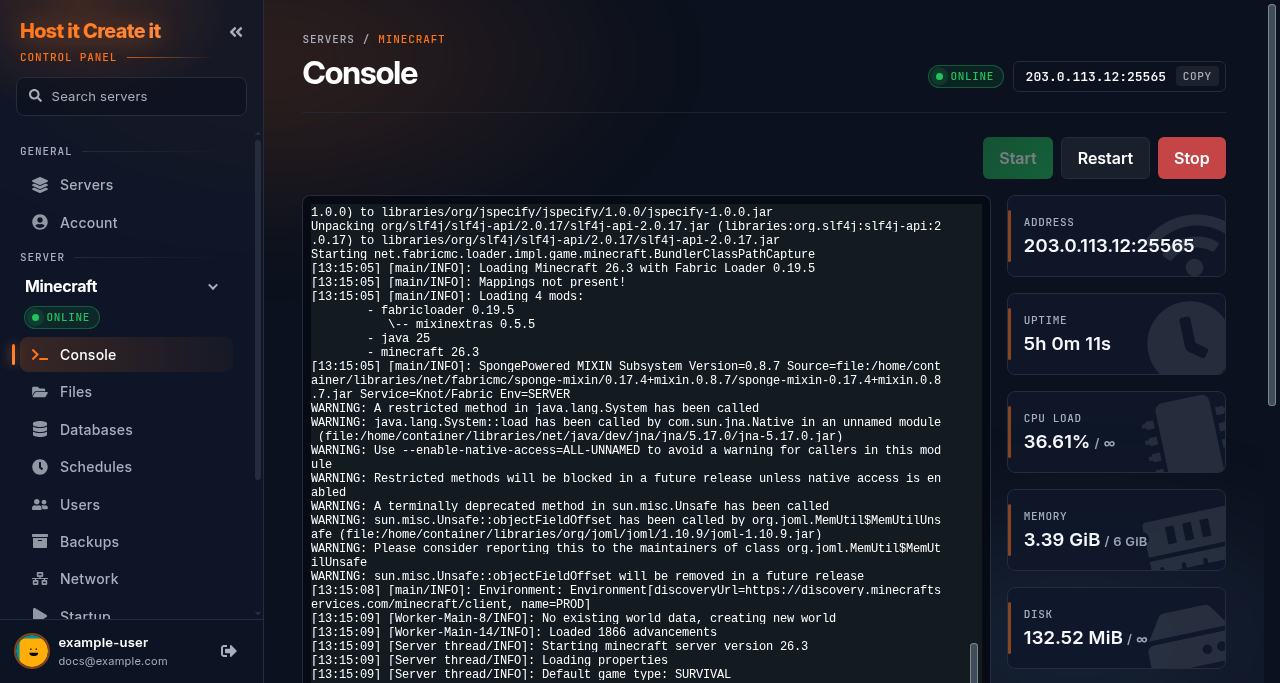
Short answer: Start the server, wait for Done (…)! For help, type "help" in the console, then join from Minecraft Java Edition with your server address. New servers start open: anyone with the address can join. To keep strangers out, turn the whitelist on (see Whitelist below).
Before you begin
Section titled “Before you begin”- You need: Minecraft Java Edition on the same version as your server. Bedrock Edition (consoles, phones, Windows “Bedrock”) can’t join.
- If you’re new to the panel, read Your first 15 minutes: from order to playing first.
Server facts
Section titled “Server facts”| Versions we offer | Minecraft (Fabric) (default) · Minecraft (NeoForge) · Minecraft (Forge) · Vanilla Minecraft · Minecraft (Paper) |
| Backups keep | /server.properties, /*.json, /*.yml, /*.yaml, /*.toml, /*.txt, /config/, /defaultconfigs/, /kubejs/, /plugins/, /datapacks/, /journeymap/, /world/, /world_nether/, /world_the_end/ |
Minecraft (Fabric)
Section titled “Minecraft (Fabric)”| Ready when the console shows | [13:15:11] [Server thread/INFO]: Done (2.080s)! For help, type "help" |
| Stop command | stop (sent by Stop) |
| Extra ports | none |
| Mods page | Modrinth, CurseForge: installed into the right folder |
| Game Settings page | Yes: Server properties (21 settings) |
| Tested in our lab | 2026-10-07: installed (0.1 GB), reached its ready message |
Settings the panel rewrites at every start
Section titled “Settings the panel rewrites at every start”Change these on Startup, not in the file: the panel writes them into the file each time the server starts.
server.properties:server-ip,enable-query,server-port
Startup settings
Section titled “Startup settings”| Setting | You can change it | Default |
|---|---|---|
| Server Jar File | Yes | server.jar |
| Minecraft Version | Yes | latest |
| Fabric Version | Yes | latest |
| Fabric Loader Version | Yes | latest |
Minecraft (NeoForge)
Section titled “Minecraft (NeoForge)”| Ready when the console shows | [01:31:23] [Server thread/INFO] [minecraft/DedicatedServer]: Done (4.178s)! For help, type "help" |
| Stop command | stop (sent by Stop) |
| Extra ports | none |
| Mods page | Modrinth, CurseForge: installed into the right folder |
| Game Settings page | Yes: Server properties (21 settings) |
| Tested in our lab | 2026-10-05: installed (0.2 GB), reached its ready message |
Settings the panel rewrites at every start
Section titled “Settings the panel rewrites at every start”Change these on Startup, not in the file: the panel writes them into the file each time the server starts.
server.properties:server-ip,server-port,query.port
Startup settings
Section titled “Startup settings”| Setting | You can change it | Default |
|---|---|---|
| Minecraft Version | Yes | latest |
| NeoForge Version | Yes | (empty) |
Minecraft (Forge)
Section titled “Minecraft (Forge)”| Ready when the console shows | [01:30:00] [Server thread/INFO] [minecraft/DedicatedServer]: Done (2.250s)! For help, type "help" |
| Stop command | stop (sent by Stop) |
| Extra ports | none |
| Mods page | Modrinth, CurseForge: installed into the right folder |
| Game Settings page | Yes: Server properties (21 settings) |
| Tested in our lab | 2026-10-05: installed (0.2 GB), reached its ready message |
Settings the panel rewrites at every start
Section titled “Settings the panel rewrites at every start”Change these on Startup, not in the file: the panel writes them into the file each time the server starts.
server.properties:server-ip,server-port,query.port
Startup settings
Section titled “Startup settings”| Setting | You can change it | Default |
|---|---|---|
| Server Jar File | Yes | server.jar |
| Minecraft Version | Yes | latest |
| Build Type | Yes | recommended |
| Forge Version | Yes | (empty) |
Vanilla Minecraft
Section titled “Vanilla Minecraft”| Ready when the console shows | [01:27:55] [Server thread/INFO]: Done (2.504s)! For help, type "help" |
| Stop command | stop (sent by Stop) |
| Extra ports | none |
| Mods page | Modrinth: installed into the right folder |
| Game Settings page | Yes: Server properties (21 settings) |
| Tested in our lab | 2026-10-05: installed (0.1 GB), reached its ready message |
Settings the panel rewrites at every start
Section titled “Settings the panel rewrites at every start”Change these on Startup, not in the file: the panel writes them into the file each time the server starts.
server.properties:server-ip,server-port,query.port
Startup settings
Section titled “Startup settings”| Setting | You can change it | Default |
|---|---|---|
| Server Jar File | Yes | server.jar |
| Server Version | Yes | latest |
Minecraft (Paper)
Section titled “Minecraft (Paper)”| Ready when the console shows | [04:00:28 INFO]: Done (7.678s)! For help, type "help" |
| Stop command | stop (sent by Stop) |
| Extra ports | none |
| Mods page | Modrinth: installed into the right folder |
| Game Settings page | Yes: Server properties (21 settings) |
| Tested in our lab | 2026-10-07: installed (0.2 GB), reached its ready message |
Settings the panel rewrites at every start
Section titled “Settings the panel rewrites at every start”Change these on Startup, not in the file: the panel writes them into the file each time the server starts.
server.properties:server-ip,server-port,query.port
Startup settings
Section titled “Startup settings”| Setting | You can change it | Default |
|---|---|---|
| Minecraft Version | Yes | latest |
| Server Jar File | Yes | server.jar |
| Build Number | Yes | latest |
Quick start
Section titled “Quick start”- Select Start on the Console page and wait for the
Doneline. - Make yourself an operator (admin): type
op <your Minecraft name>in the console box and press Enter. - Optional: to let only your friends in, add each one with
whitelist add <their name>, then turn the whitelist on withwhitelist on. - Copy your address with Copy at the top of the page and share it.
- In Minecraft: Multiplayer > Add Server, paste the address, then Done and join.
Joining the server
Section titled “Joining the server”Minecraft joins on one address, with no separate query port. If the address ends in :25565 you can leave the port off, but including it always works.
Whitelist
Section titled “Whitelist”New servers start with the whitelist off (white-list=false), so anyone with your address can join. Turn it on to allow only players you’ve added; everyone else then sees “You are not white-listed on this server!”.
Servers created before October 2026 may have it on: Minecraft 26.3 and later switch it on by default, and we now switch it off for new servers.
| To | Type in the console |
|---|---|
| Add a player | whitelist add <name> |
| Remove a player | whitelist remove <name> |
| See who’s on it | whitelist list |
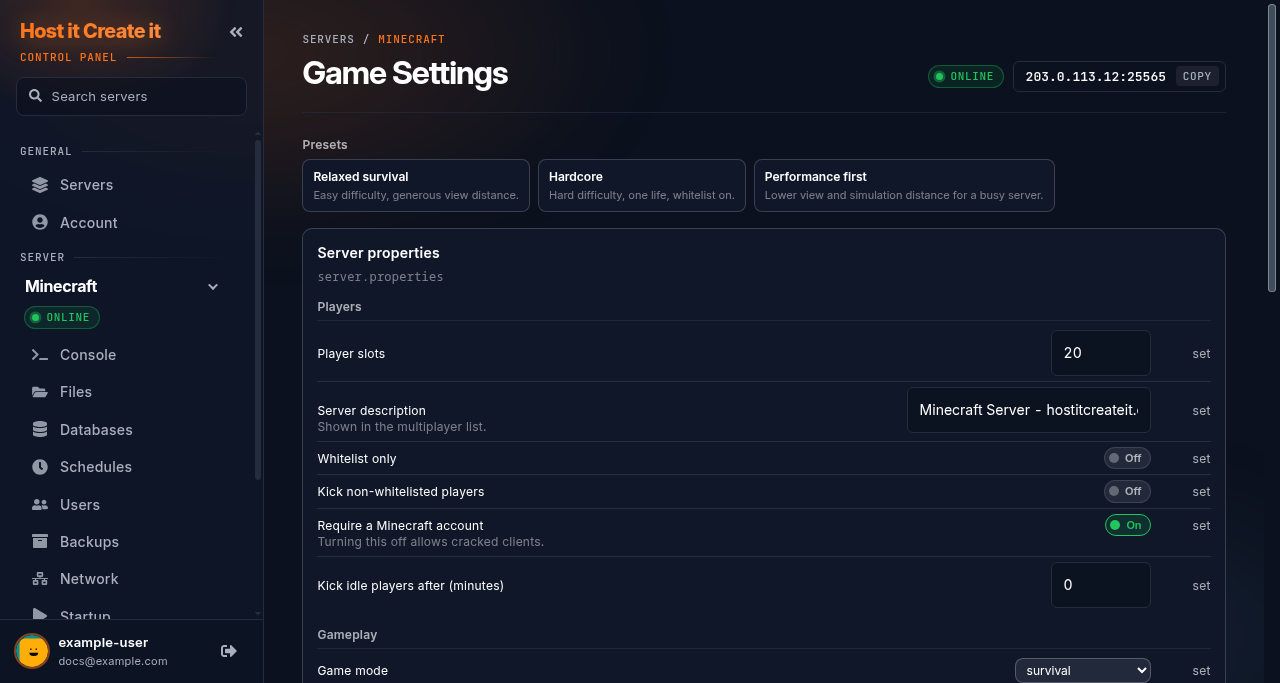
| Turn it on | whitelist on (or Whitelist only on Game Settings) |
| Turn it off | whitelist off (or Whitelist only off on Game Settings) |
Admin access (operators)
Section titled “Admin access (operators)”op <name>makes a player an operator: they can use commands such as/gamemode,/tpand/banin game.deop <name>removes it.- Operators are stored in
ops.json. Edit that file only while the server is stopped.
Commands typed in the panel console don’t need a /. In game, they do.
Settings
Section titled “Settings”The Game Settings page edits server.properties with menus: player slots, difficulty, game mode, whitelist, view distance and more. Restart after saving.
To edit server.properties by hand, stop the server first, then use Files. The address settings (server-ip, server-port, query.port) are rewritten by the panel at every start, so changes to those are undone: see the facts above.
Worlds
Section titled “Worlds”- Your world is the
worldfolder (plusworld_netherandworld_the_endon Paper). The name comes from World folder (level-name) on Game Settings. - New world, keep the old one: stop the server, change World folder to a new name such as
world2, start. Change it back to return to the old world. - World seed only applies when a world is first created.
- To bring in a single-player world, upload its folder from
.minecraft/saves/and set World folder to its name. See Uploading an existing world.
Mods and plugins
Section titled “Mods and plugins”| Version | How |
|---|---|
| Fabric, Forge, NeoForge | Mods page: browse Modrinth or CurseForge, filtered to your loader and Minecraft version. Players need the same mods: see Players need the same mods: joining a modded server |
| Paper | Mods page: browse Modrinth for Paper plugins. You can also upload plugin .jar files to the plugins folder with Files or SFTP. Restart afterwards. Players don’t need plugins |
| Vanilla | No mods or plugins. Datapacks go in world/datapacks |
Fabric mods don’t work on Forge or NeoForge, and the other way round. Check the mod page for your loader and version.
Restarts and saving
Section titled “Restarts and saving”save-allsaves the world now. Stop sendsstop, which also saves.- For a nightly restart with a warning, see Setting up automatic restarts and backups with schedules. Use
say Restarting in 1 minuteas the warning command.
Updating
Section titled “Updating”The Minecraft version is set on Startup (“Minecraft Version” or “Server Version”). It’s applied when the server is installed, so change it and then reinstall. Back up first: worlds can’t be moved back to an older version. See Updating your game server.
Performance
Section titled “Performance”The biggest levers are on Game Settings under Performance:
- View distance (chunks): how far players see. Default 10. Lowering it to 6–8 cuts load a lot.
- Simulation distance (chunks): how far the world keeps running. Default 10.
Lots of animals, item farms and heavy mods also add load. If memory is near your plan’s limit, see My server keeps crashing or restarting.
Common errors
Section titled “Common errors”| Message | Meaning | Fix |
|---|---|---|
| “You are not white-listed on this server!” | Whitelist is on and the player isn’t on it | whitelist add <name> |
| “Outdated server!” / “Outdated client!” | Player and server are on different Minecraft versions | Match the versions (see Updating) |
| “Failed to verify username!” | The player’s Minecraft account couldn’t be checked | Ask them to restart their game and launcher |
| “Incompatible mods” / “Mod rejections” | The player’s mods don’t match the server’s | Install the same mods and versions |
Done never appears, server goes Offline |
A mod or setting error at start-up | Read the console: My server will not start |
When to contact support
Section titled “When to contact support”Contact support if the server won’t reach the Done line after you’ve removed recently added mods, or nobody can join with the whitelist off and versions matching. Include the console lines from the start-up. See How to contact support with useful diagnostic information.
We help with the panel, starting the server, connecting and the Mods page. We can’t fix bugs inside third-party mods or plugins.
Related guides
Section titled “Related guides”Last reviewed: 2026-10-05 · Applies to: Game Panel (hici 0.4.2, HiCiTools 3.0.2)