How to create and restore a backup
Short answer: Go to [Your Server] > Backups and select Create backup. To go back to a backup, open its ••• menu and select Restore safely…. It backs up your current files first, so you can undo the restore.
A backup is a saved copy of your server’s files at one moment in time. Backups are stored off-site, away from the machine your server runs on.
Before you begin
Section titled “Before you begin”- You need: the server owner’s account, or a subuser with the backup permissions.
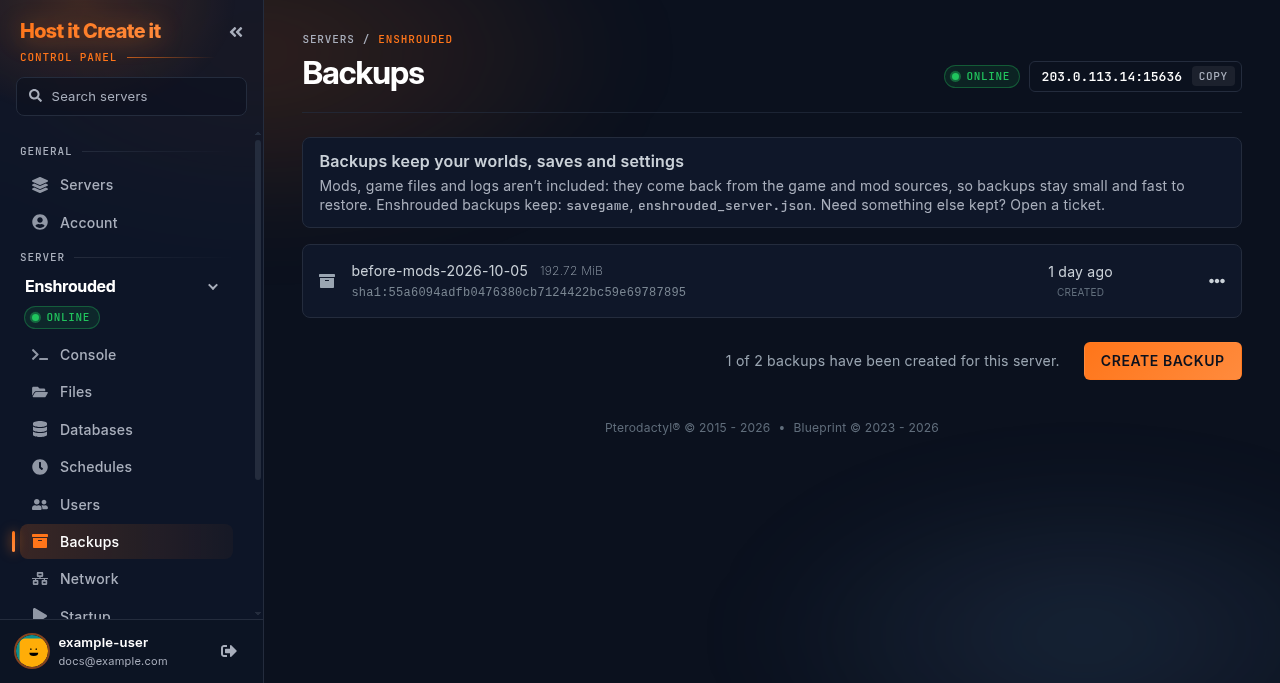
- Your server has 2 backup slots. The automatic nightly backup normally fills both, so you always have the last two nights. To make a backup of your own, delete the older one first (download it before you delete it if you want to keep it). The Backups page shows how many are used, for example “2 of 2 backups have been created for this server.”
- Time needed: a few minutes; large worlds take longer.
What backups keep
Section titled “What backups keep”Backups keep your worlds, saves and settings. They don’t include mods, game files or logs: those come back from the game and mod sources, which keeps backups small and quick to restore. The Backups page lists exactly which folders your game’s backups keep. If you need something else kept, open a ticket.
Automatic backups
Section titled “Automatic backups”Your server makes a backup every night between 02:00 and 04:00 UTC, using the Daily backup schedule on the Schedules page. You can change its time there.
Create a backup
Section titled “Create a backup”-
If both slots are full, delete the older backup (••• menu > Delete). Create backup only appears when a slot is free. Download the backup first if you want to keep it.
-
Stop the server, or warn players. A backup of a running server can catch a world half-way through saving.
-
Go to [Game Panel] > [Your Server] > Backups.
-
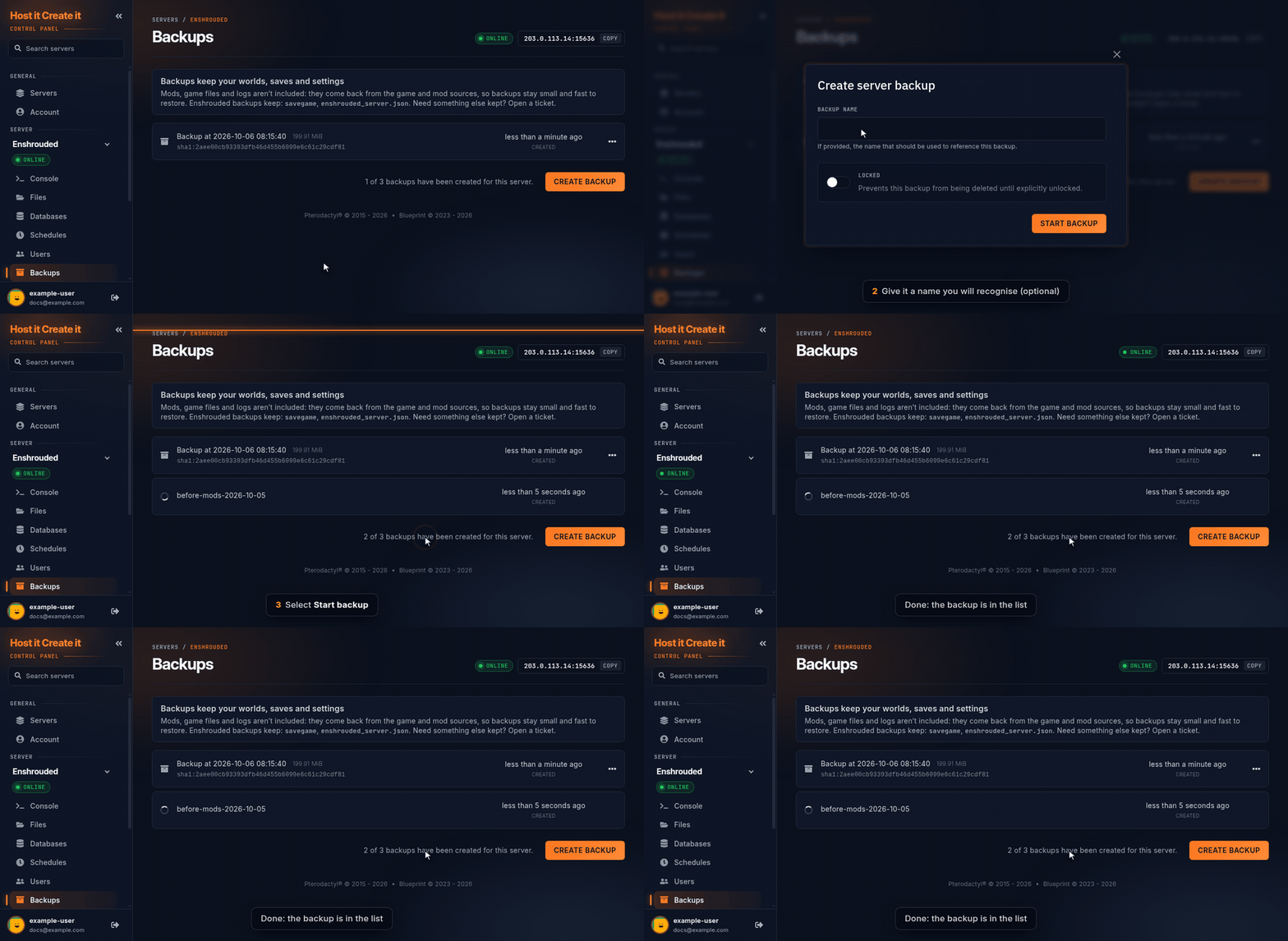
Select Create backup.
-
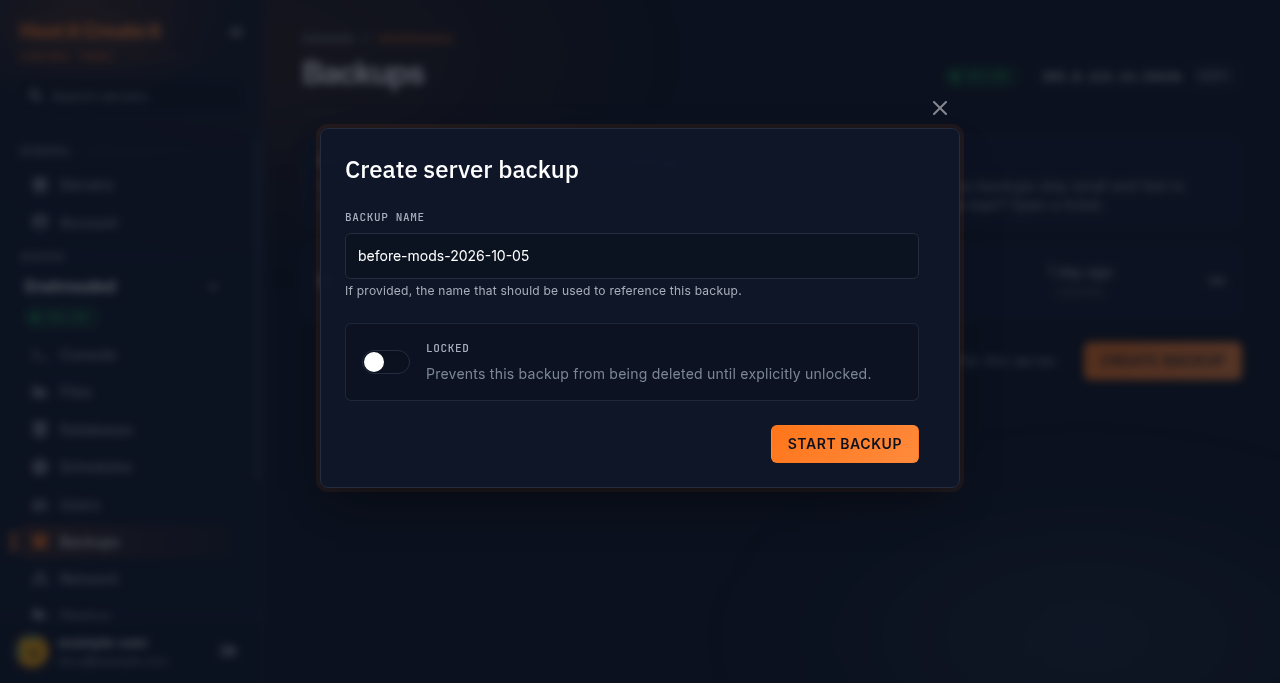
In Backup name, enter a name you’ll recognise later, such as
before-mods-2026-10-05. -
Optional: turn on Locked so it is never deleted automatically.
-
Select Start backup. The backup appears in the list and shows progress until it finishes.
Restore a backup
Section titled “Restore a backup”-
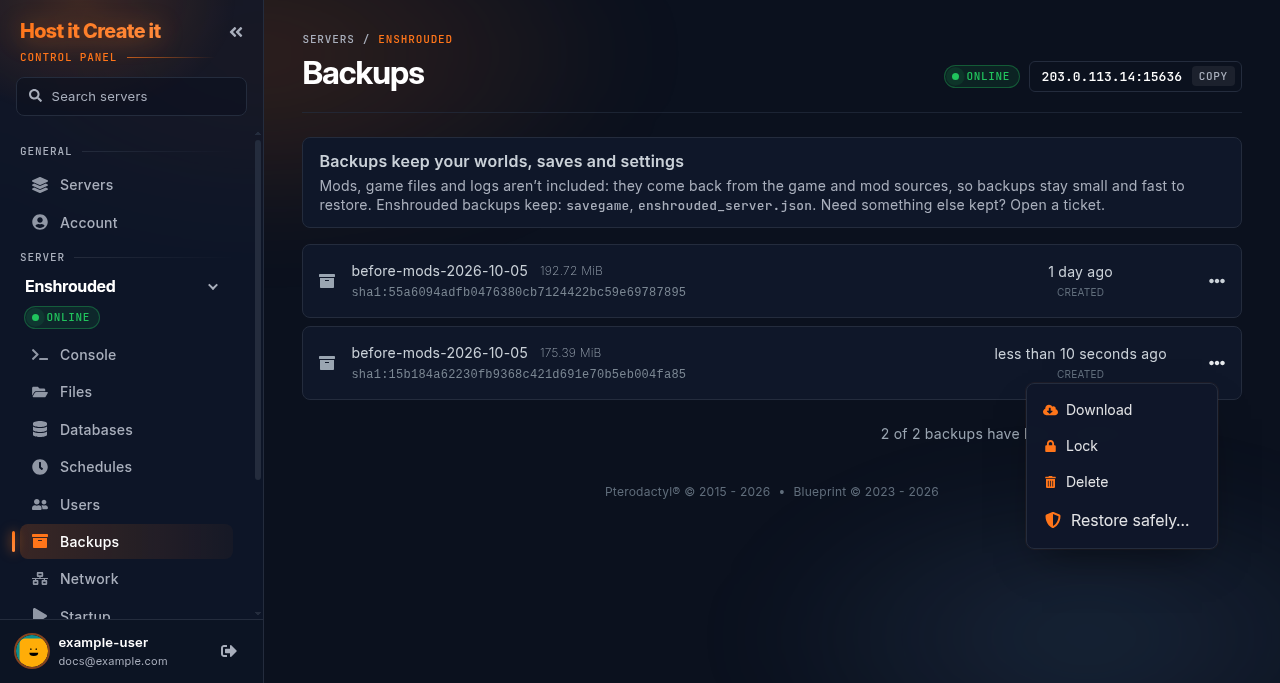
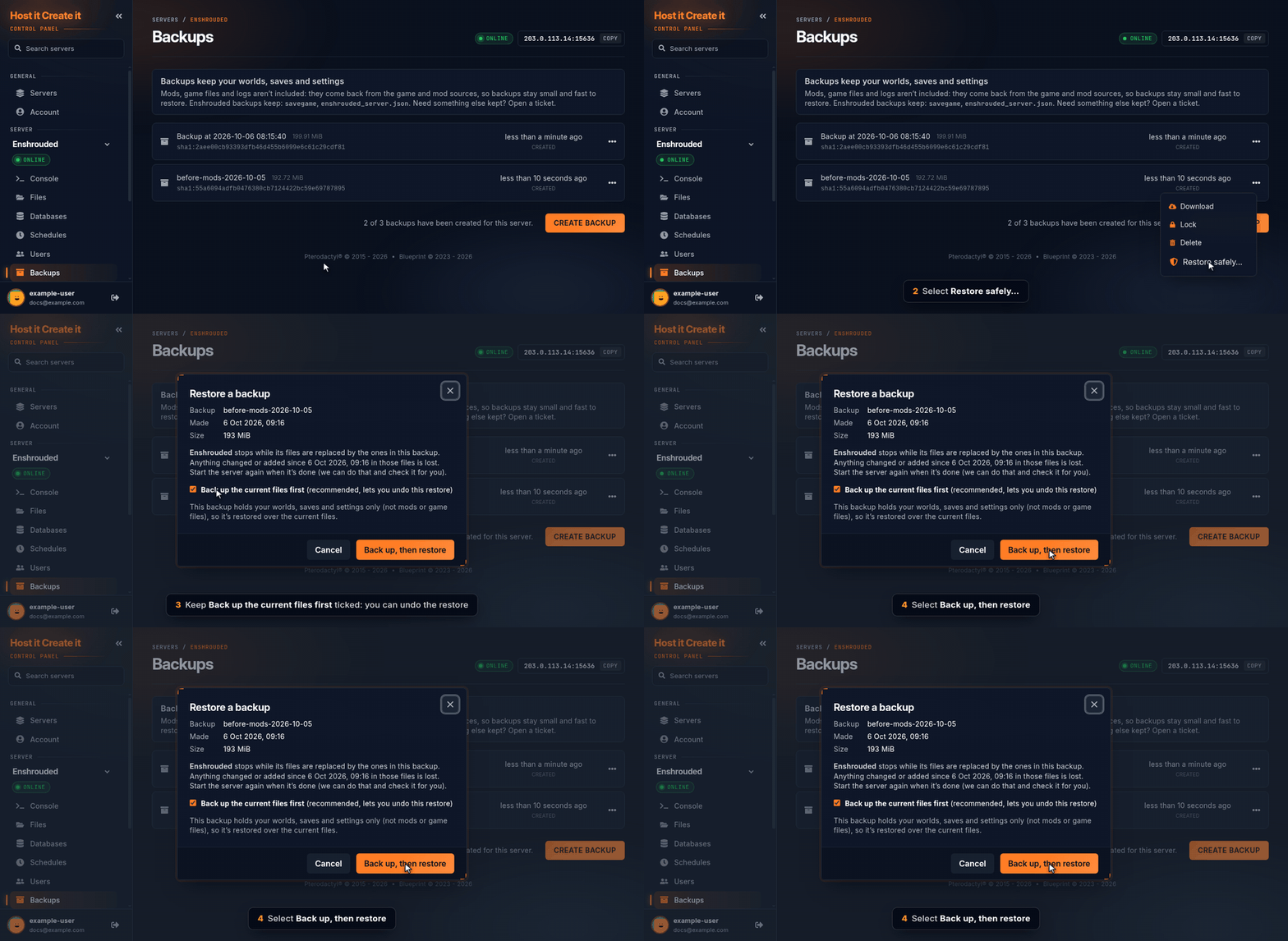
On the Backups page, open the ••• menu next to the backup and select Restore safely…. The Restore a backup window opens.
-
Check the Backup name, the date it was Made, and its Size.
-
Leave Back up the current files first ticked. If both slots are full, the dialog tells you which other backup this safety backup will replace.
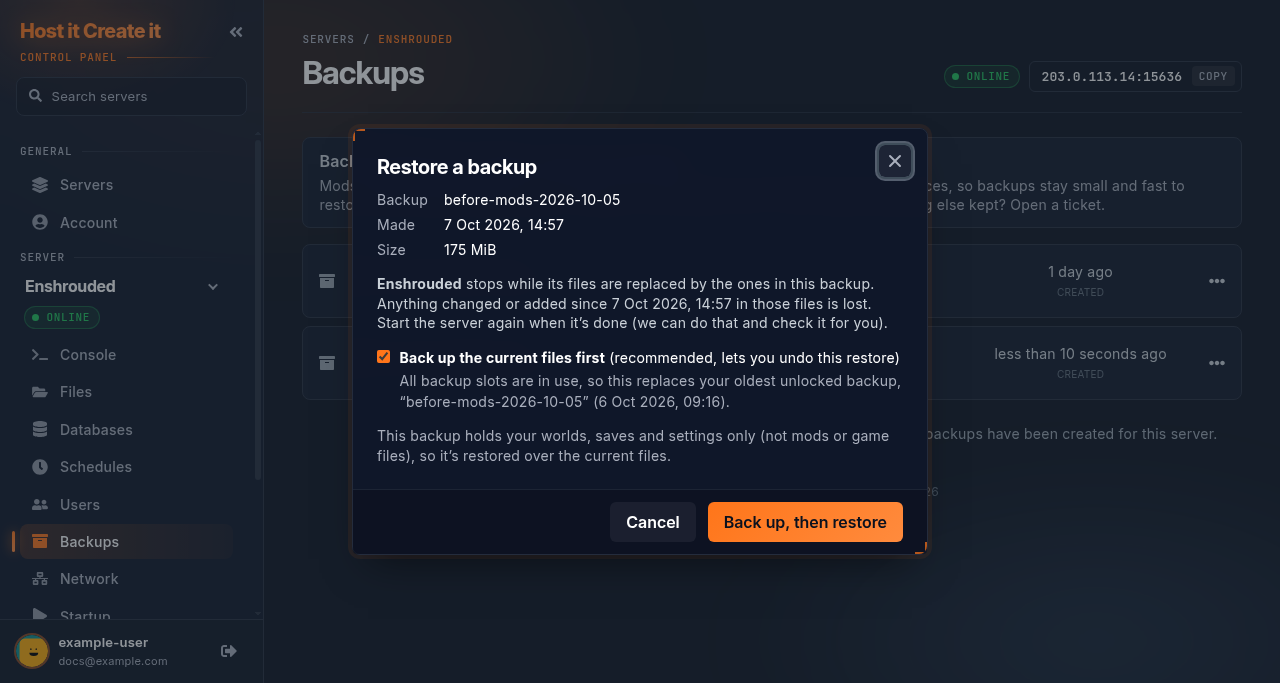
- Select Back up, then restore. A progress card shows Safety backup, Restoring, then Done. Your server stops while its files are replaced. The page updates by itself.
- When it says Restored, select Start the server and check. If you see “The server started and kept running. All good.”, you’re done.
Undo a restore
Section titled “Undo a restore”- If the restored world isn’t what you wanted, select Undo this restore on the Backups page. This restores the safety backup from step 10.
Download a backup
Section titled “Download a backup”- Open the backup’s menu and select Download. Keep a copy on your computer before big changes.
Expected result
Section titled “Expected result”- Create: the backup appears with a size and date and no error.
- Restore: the progress card shows Restored, and the server starts with the world as it was when the backup was made.
Common mistakes
Section titled “Common mistakes”- Unticking “Back up the current files first”. Without it there is no undo.
- Leaving important backups unlocked. The nightly backup removes the oldest unlocked one.
- Expecting mods back after a restore. Backups keep worlds, saves and settings only. Mods stay as they are on the server. If you removed a mod since the backup, reinstall it from the Mods page.
- Taking a backup while the server is saving. Stop the server or run your game’s save command first.
Troubleshooting
Section titled “Troubleshooting”| What you see | What it means | What to do |
|---|---|---|
| “Cannot create a new backup, this server has reached its limit of 2 backups.” | Both slots are used, usually by the nightly backups | Delete the older backup (download it first if you want to keep it), then try again |
| “Only 2 backups may be generated within a 600 second span of time.” | You made backups very quickly | Wait 10 minutes and try again |
| Backup fails | Often a full disk or a file in use | Stop the server and try again; check disk use on Console |
| “Restore stopped” | The restore failed part way | Don’t start the server or change files; contact support with the message shown |
| “The server stopped again after starting.” | The restored files may be the problem | Check the console; use Undo this restore if needed |
When to contact support
Section titled “When to contact support”Contact support if a backup fails twice with the server stopped, a restore shows Restore stopped, or you’ve lost data and have no backup. Include the backup name and date, the time of the failure, and the message on the Backups page. Don’t restore anything else or delete files while you wait.
Related guides
Section titled “Related guides”- Setting up automatic restarts and backups with schedules
- How to connect to your server using SFTP
- How to reinstall or reset a game server
Last reviewed: 2026-10-05 · Applies to: Game Panel (hici 0.4.2)