How to find your server IP address and connection port
Short answer: Your server address is at the top of every server page, in the format IP:port (for example 203.0.113.10:2456). Select Copy next to it, then paste it into your game’s direct-connect or “add server” box.
Before you begin
Section titled “Before you begin”- You need: access to the server in the Game Panel.
- Time needed: 1 minute.
Key terms
Section titled “Key terms”- IP address: the number that identifies the machine your server runs on, such as
203.0.113.10. - Port: the number after the colon, such as
2456. Many game servers share one machine; the port tells the game which one is yours. - Server address: the IP address and port together. This is what players type.
What this guide covers
Section titled “What this guide covers”- Where to find your address
- How to enter it in games that ask for the IP and port separately
- Why some games have a second port
-
Go to [Game Panel] > [Your Server] > Console.
-
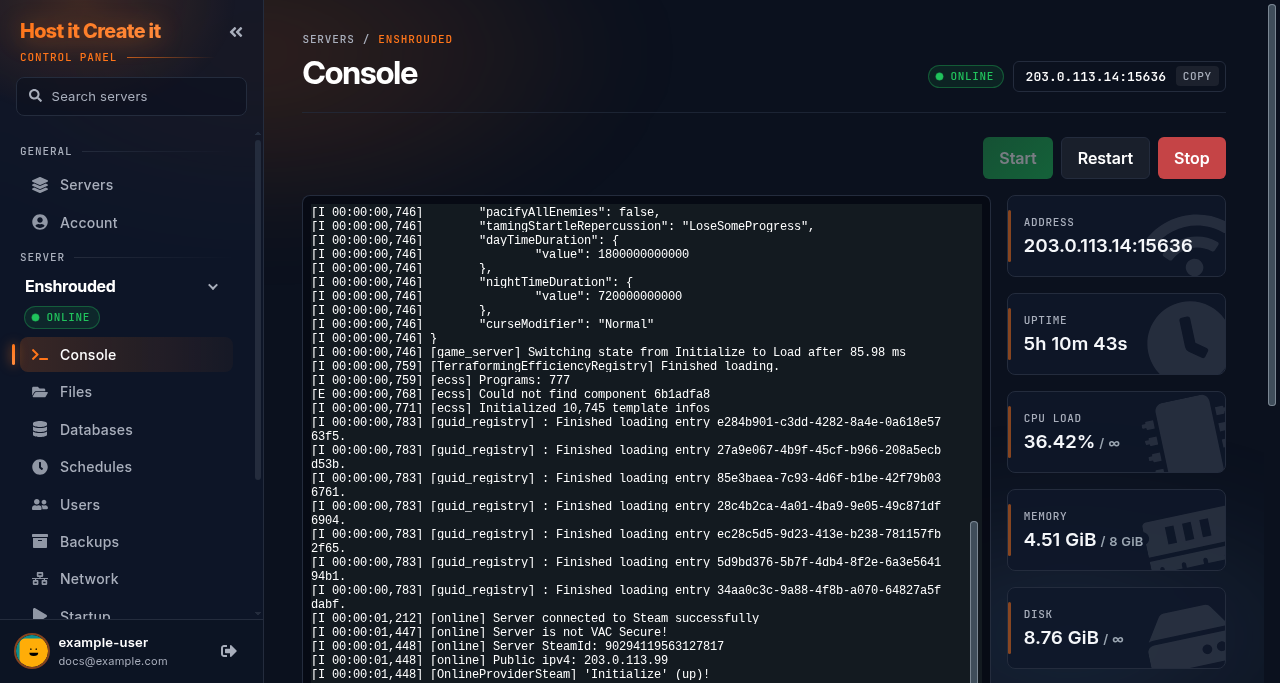
Your address is at the top right of every server page, next to the status. It’s an IP address and port, such as
203.0.113.10:2456. It’s also in the Address box on the Console page. -
Select Copy next to it. It changes to Copied.
-
In your game, open direct connect (it may be called “Add server”, “Join by IP” or “Connect”) and paste the address.
If the game asks for the IP and port in separate boxes, put the part before the colon in the IP box (203.0.113.10) and the number after it in the port box (2456).
All ports for your server
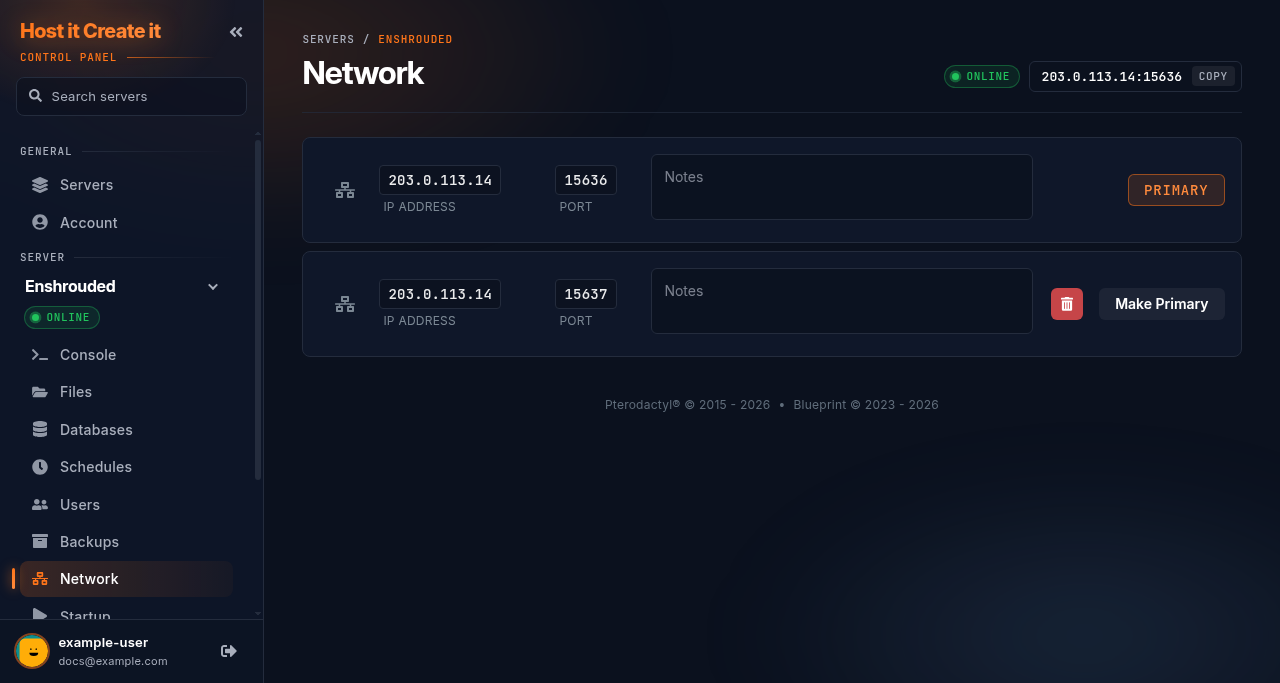
Section titled “All ports for your server”Go to [Game Panel] > [Your Server] > Network. It lists every address and port assigned to your server. The one marked Primary is the one players connect to.
Expected result
Section titled “Expected result”Your game finds the server and either joins, or asks for the server password.
Common mistakes
Section titled “Common mistakes”- Leaving out the port. Without it, the game tries its default port, which is usually someone else’s server or nothing.
- Using the query port to join. Connect with the primary port, not the “+1” port.
- Copying
localhostor0.0.0.0from config files or the console. Those mean “this machine” from the server’s point of view. Use the address from the Console page. - Typing
http://in front. Game addresses never start withhttp://.
Troubleshooting
Section titled “Troubleshooting”| What you see | What it means | What to do |
|---|---|---|
| Connection times out (“not responding”) | Nothing answered: wrong address, or the server is not running | Check status is Online and copy the address again |
| “Connection refused” | Nothing is listening on that port | Check you used the primary port, not the query port |
| Asked for a password | It worked: the server has a password | The password is on the Startup page or in your game’s config; see your game guide |
| Server is not in the browser list | Normal for some games for a few minutes | See My server is not showing in the game browser |
When to contact support
Section titled “When to contact support”Contact support if the Console page shows no address, or the address changes without you changing anything. Include your server name and server ID (the 8 characters after /server/ in the panel’s web address).
Related guides
Section titled “Related guides”- I cannot connect to my server
- My server is not showing in the game browser
- Inviting friends: sharing your address and password
- What is a port, and which ones does my game use?
Last reviewed: 2026-10-05 · Applies to: Game Panel (hici 0.4.2)