Project Zomboid server guide
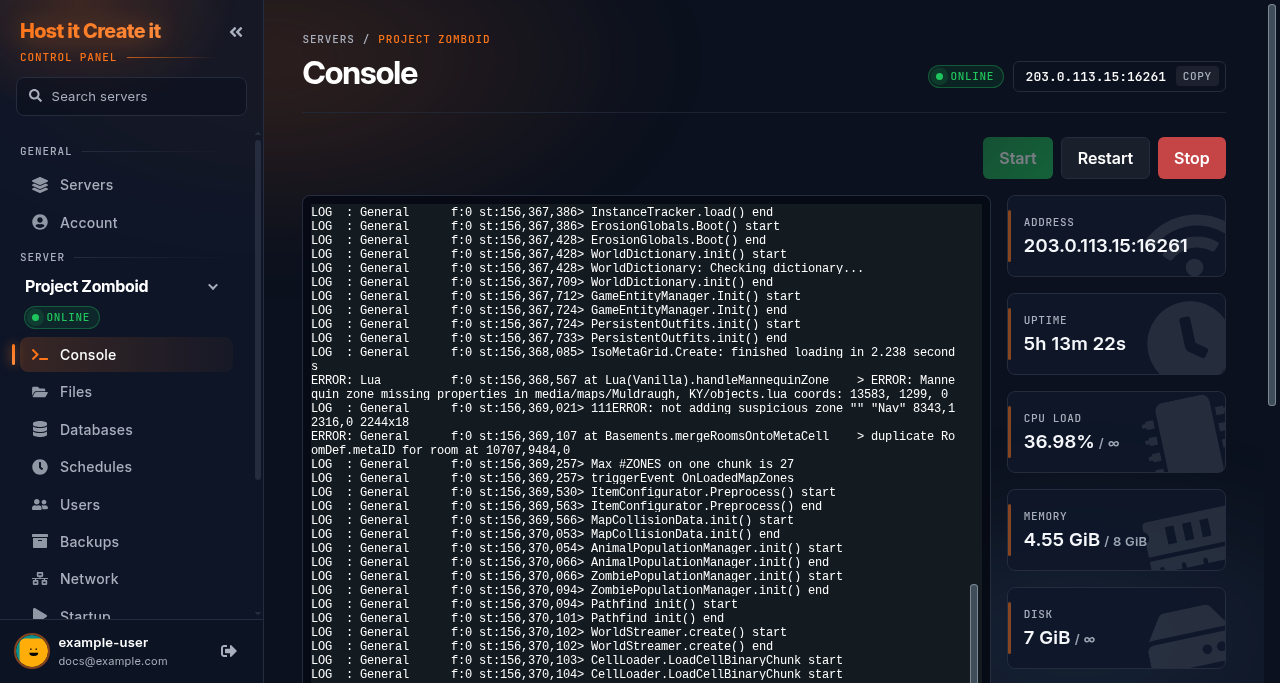
Short answer: Change Admin Password on Startup before your first start (the default is password). Start the server and wait for *** SERVER STARTED ****. Players join with Join > your address and port.
Before you begin
Section titled “Before you begin”- You need: Project Zomboid on Steam, on the same build as the server (Build 41 or Build 42).
- If you’re new to the panel, read Your first 15 minutes: from order to playing first.
Server facts
Section titled “Server facts”| Versions we offer | Project Zomboid (default) |
| Backups keep | /.cache/ |
Project Zomboid
Section titled “Project Zomboid”| Ready when the console shows | LOG : Network f:0 st:156,370,147> *** SERVER STARTED **** |
| Stop command | quit (sent by Stop) |
| Extra ports | SteamPort (an extra port on Network); UDP Port (an extra port on Network) |
| Mods page | Steam Workshop: downloaded and switched on in the game config |
| Game Settings page | Yes: Server settings (20 settings) |
| Tested in our lab | 2026-10-05: installed (7.5 GB), reached its ready message |
Startup settings
Section titled “Startup settings”| Setting | You can change it | Default |
|---|---|---|
| Server Name | Yes | hostitcreateit |
| Admin Username | Yes | admin |
| Admin Password | Yes | password |
| SteamPort | No | 8766 |
| UDP Port | No | 16262 |
| Max Players | No | 10 |
| Steam Beta Branch [requires reinstall] | Yes | (empty) |
| Steam Auto Update | Yes | 0 |
Quick start
Section titled “Quick start”- On Startup, set Admin Password (and Admin Username if you like). Set Server Name too: it also names your settings file and save.
- Select Start and wait for
*** SERVER STARTED ****. - In Project Zomboid: Join, enter your server’s IP and port (for example
203.0.113.10and16261), your own username and a password for your player account, and connect.
- Log in with the Admin Username and Admin Password from Startup to play as the admin.
- In the panel console, commands work without a slash, for example
setaccesslevel <username> admin,kickuser <username>,saveandservermsg "Restarting soon".
Settings
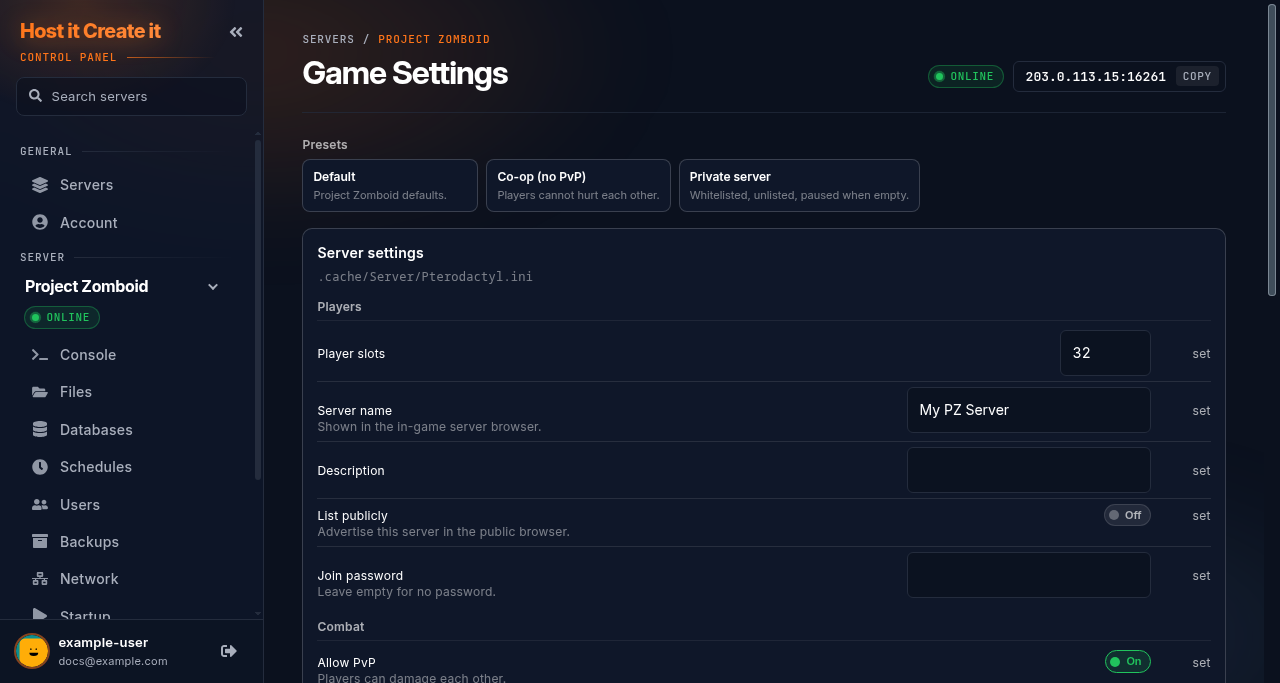
Section titled “Settings”The server’s settings file is .cache/Server/<Server Name>.ini (for a new server, .cache/Server/hostitcreateit.ini; servers created before October 2026 use Pterodactyl.ini). Defaults on a new server:
| Setting | Default | Meaning |
|---|---|---|
Password |
(empty) | Anyone can join. Set a password to make the server private |
Public |
false |
Not listed in the in-game public server list |
PublicName |
My PZ Server |
Name shown in the list when public |
PVP |
true |
Players can hurt each other |
Open |
true |
Anyone can create an account; set false for a whitelist-only server |
PauseEmpty |
true |
Time stops when nobody is online |
The Game Settings page edits the common ones with menus: players, name, public listing, password, PvP and more. Restart after saving. For anything else, stop the server, edit the file in Files, Save Content and start again.
Worlds are in .cache/Saves/Multiplayer/<Server Name>/. Backups keep the whole .cache folder (settings and saves). Changing Server Name starts a new world and a new settings file: change it back to return to the old one.
The Mods page installs Steam Workshop mods and switches them on for you: it adds them to WorkshopItems= and Mods= in the server ini, with any required mods first. Steam downloads stop the server and it stays offline afterwards: start it again when the install finishes. Players download the server’s mods automatically when they join.
Restarts and updates
Section titled “Restarts and updates”- Stop sends
quit, which saves and shuts down. - Steam Auto Update on Startup is off by default. To update after a game patch, turn it on and restart, or reinstall. See Updating your game server.
Common problems
Section titled “Common problems”| Problem | Cause | Fix |
|---|---|---|
| “Server version mismatch” | Player and server on different builds | Match builds: update the server, or the player switches beta branch |
| Not in the public list | Public=false by default |
Set Public=true in the ini, or join by IP |
| Lost admin rights | Logged in with a different account | Log in with the Startup admin username and password |
| A mod is listed but doesn’t load | It needs another mod that isn’t installed | Install the mod it names in the error on Mods |
When to contact support
Section titled “When to contact support”Contact support if the server doesn’t reach *** SERVER STARTED ****, or players can’t connect by IP. Include the console output. See How to contact support with useful diagnostic information.
Related guides
Section titled “Related guides”- Adding your server to your Steam favourites
- Installing mods from the Mods page
- Using the built-in file manager
- How to create and restore a backup
Last reviewed: 2026-10-05 · Applies to: Game Panel (hici 0.4.2, HiCiTools 3.0.3)