Rust server guide
Short answer: Change RCON Password on Startup first (the default is CHANGEME), set Server Name and Description, then start the server and wait for Server startup complete. Players connect with client.connect <address> in Rust’s F1 console.
Before you begin
Section titled “Before you begin”- You need: Rust on Steam.
- If you’re new to the panel, read Your first 15 minutes: from order to playing first.
Server facts
Section titled “Server facts”| Versions we offer | Rust (default) |
| Backups keep | /server/rust/, /oxide/config/, /oxide/data/, /carbon/configs/, /carbon/data/ |
| Ready when the console shows | Server startup complete |
| Stop command | quit (sent by Stop) |
| Extra ports | QUERY PORT (an extra port on Network); RCON Port (an extra port on Network); APP PORT (an extra port on Network) |
| Mods page | No: see the Mods section below |
| Game Settings page | No |
| Tested in our lab | 2026-10-05: installed (6.5 GB), reached its ready message |
Startup settings
Section titled “Startup settings”| Setting | You can change it | Default |
|---|---|---|
| Max Players | Yes | 40 |
| Server Name | Yes | Rust Server - hostitcreateit.com |
| Level | Yes | Procedural Map |
| Description | Yes | Hosted by Host It Create It - hostitcrea |
| URL | Yes | https://hostitcreateit.com |
| World Size | Yes | 3000 |
| World Seed | Yes | 0 |
| Server Image | Yes | (empty) |
| RCON Port | No | 28016 |
| RCON Password | Yes | CHANGEME |
| Save Interval | Yes | 60 |
| Additional Arguments | Yes | (empty) |
| Regen Server | Yes | 0 |
| Files to remove | Yes | server/rust/player.deaths.*.db server/ru |
| QUERY PORT | Yes | 28017 |
| APP PORT | Yes | 28082 |
| Custom Map URL | Yes | (empty) |
| Modding Framework | Yes | vanilla |
Quick start
Section titled “Quick start”- On Startup: set RCON Password, Server Name and Description. Change URL to your community’s site, or leave our default (
https://hostitcreateit.com). - Choose the map with Level, World Size and World Seed.
- Select Start. The first start generates the map and can take several minutes. Wait for
Server startup complete. - In Rust: press F1 and type
client.connect 203.0.113.10:28015(your address).
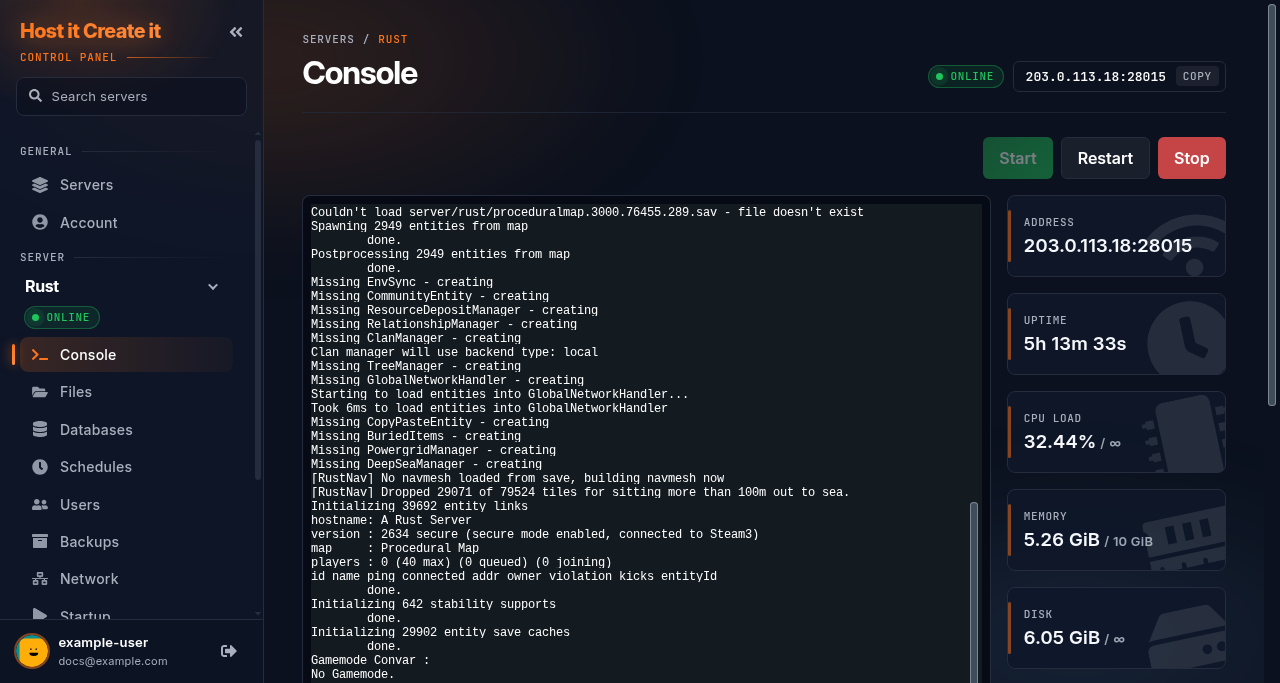
In the panel console, type:
ownerid <SteamID64> "<name>"server.writecfgownerid gives full admin, moderatorid gives moderator. server.writecfg saves the list so it survives restarts. Find a SteamID64 in the player’s Steam profile URL or with a Steam ID lookup site.
Wipes and maps
Section titled “Wipes and maps”- The map and player progress are in
server/rust/. Backups keep it. - Changing World Seed, World Size or Level creates a new map (a map wipe).
- Regen Server and Files to remove on Startup control what the server deletes at start: for example
player.deathfiles. Leave them as they are unless you’re planning a wipe.
Plugins (Oxide/uMod or Carbon)
Section titled “Plugins (Oxide/uMod or Carbon)”Rust plugins aren’t on the Mods page.
- Set Modding Framework on Startup to
oxideorcarbon, then restart. The framework is installed at start. - Upload plugin
.csfiles tooxide/plugins(Oxide) orcarbon/plugins(Carbon) with Files or SFTP. - Plugins load automatically. Their settings appear in
oxide/configorcarbon/configs; backups keep those.
Players don’t need plugins.
Restarts and updates
Section titled “Restarts and updates”- Stop sends
quit, which saves and shuts down. - Rust updates on the first Thursday of each month. Restart after the update; Oxide and Carbon usually update within hours, and plugins may break until then.
Common problems
Section titled “Common problems”| Problem | Cause | Fix |
|---|---|---|
| “Connection attempt failed” | Server still generating the map | Wait for Server startup complete |
| Version mismatch after a forced update | Server not restarted since Rust updated | Restart the server |
| Admin rights gone after restart | server.writecfg wasn’t run |
Run ownerid again, then server.writecfg |
| Plugins don’t load | Modding Framework still vanilla |
Set it to oxide or carbon and restart |
When to contact support
Section titled “When to contact support”Contact support if the server doesn’t reach Server startup complete after 15 minutes, or nobody can connect. Include the console output. See How to contact support with useful diagnostic information.
Related guides
Section titled “Related guides”- Adding your server to your Steam favourites
- Changing startup settings
- Using the built-in file manager
- How to create and restore a backup
Last reviewed: 2026-10-05 · Applies to: Game Panel (hici 0.4.2)